AI Vision
Works with the POS hawk-eye panel to identify items fast and cut down on hunting and mis-scans.
One system linking the owner's phone, the POS counter, inventory, VIP pricing, sales records and store reports. Faster checkout at the front, clearer numbers at the back.
Core Features
From front-counter checkout and back-office purchasing to the owner checking numbers, auditing transactions and managing terminals, VERTEX puts the daily work of a store on one chain.
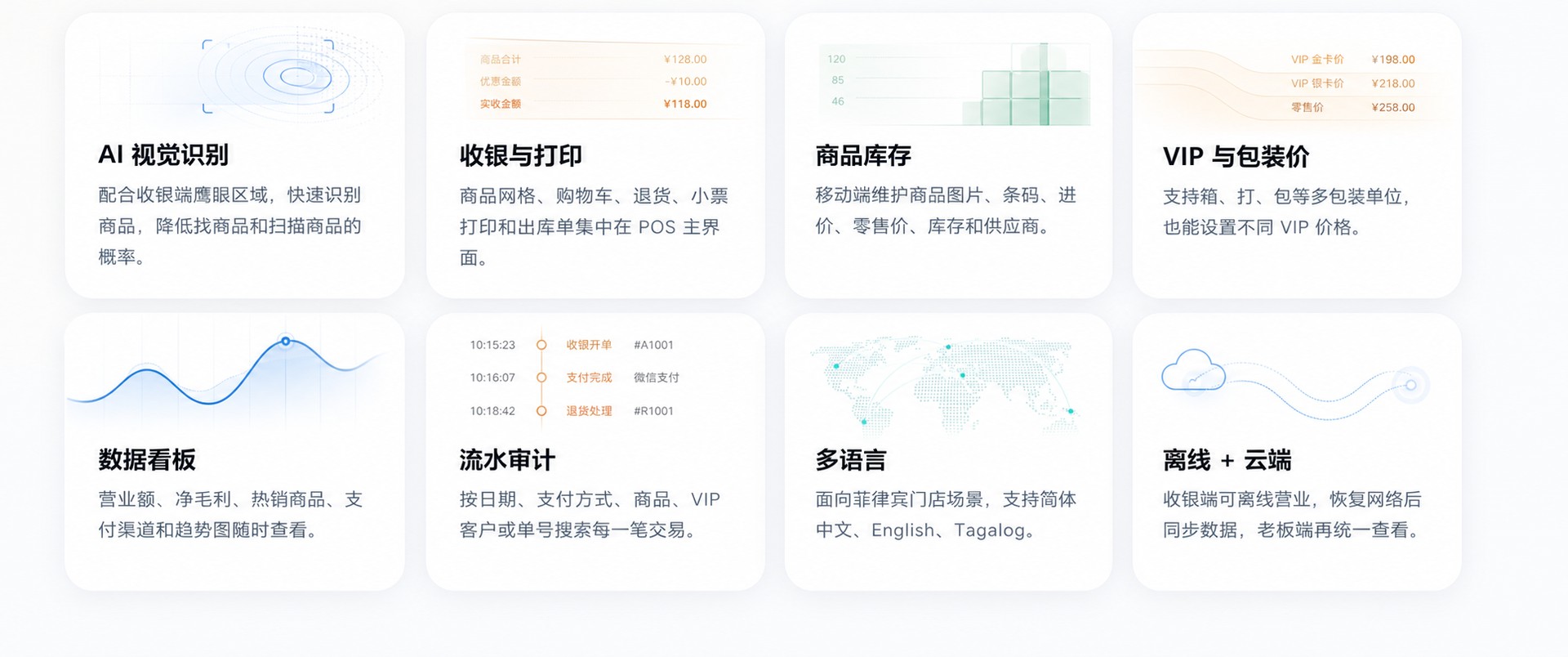
Works with the POS hawk-eye panel to identify items fast and cut down on hunting and mis-scans.
Product grid, cart, returns, receipt printing and delivery notes, all on the POS main screen.
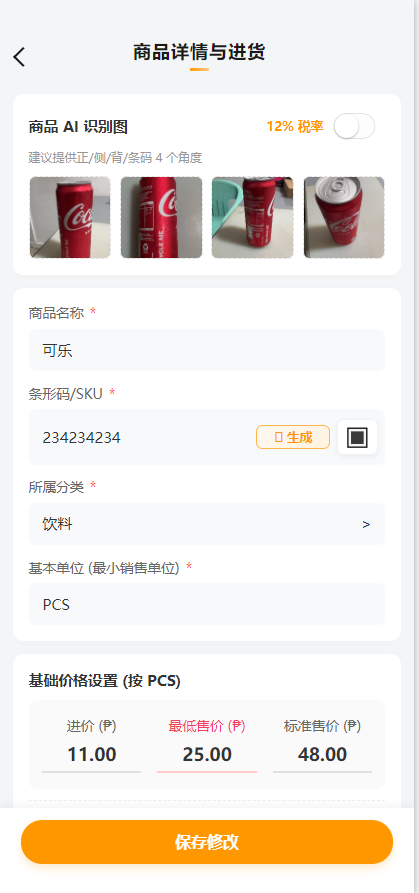
Maintain product photos, barcodes, cost, retail price, stock and suppliers from your phone.
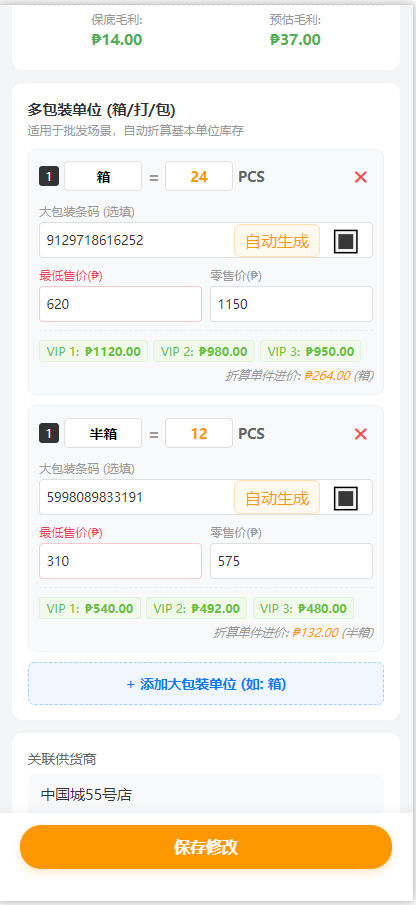
Supports case, dozen and pack units, with separate VIP price levels.
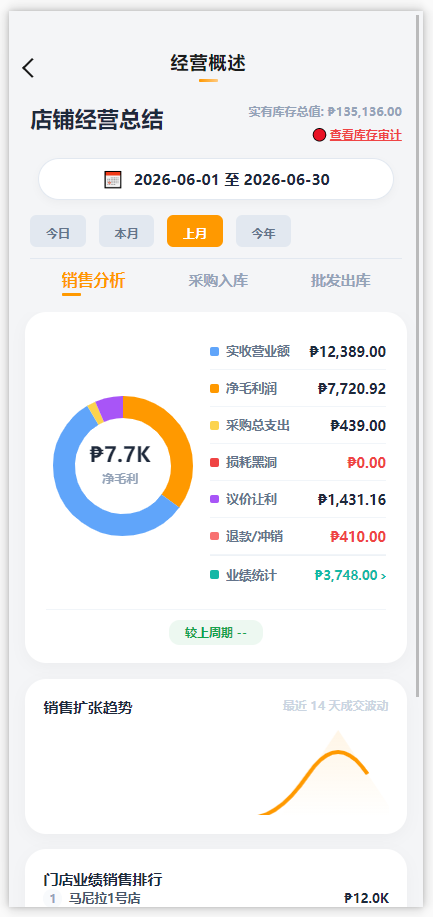
Revenue, net margin, best sellers, payment channels and trend charts, any time.
Search every transaction by date, payment method, product, VIP customer or order number.
Built for Philippine stores: 简体中文, English and Tagalog.
The POS keeps running offline and syncs once the connection is back; the owner sees it all in one place.
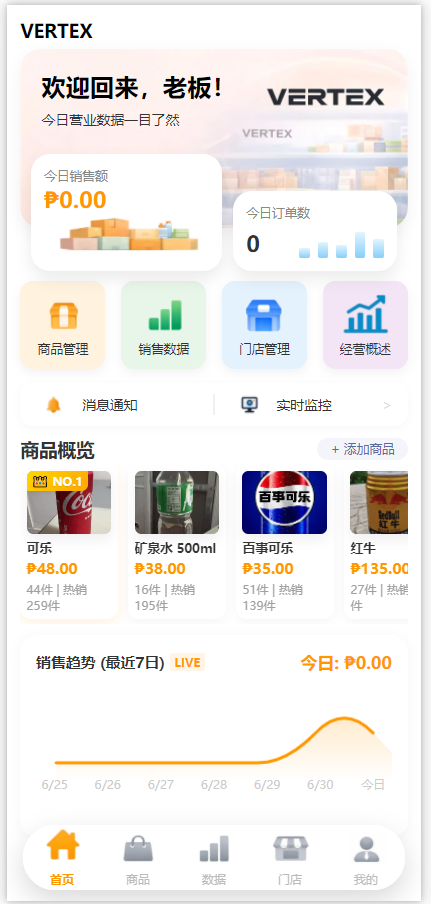
Mobile Boss App
The mobile app isn't an accessory, it's the owner's control center: product setup, price maintenance, stock counts, store command and business overview all happen on the phone.
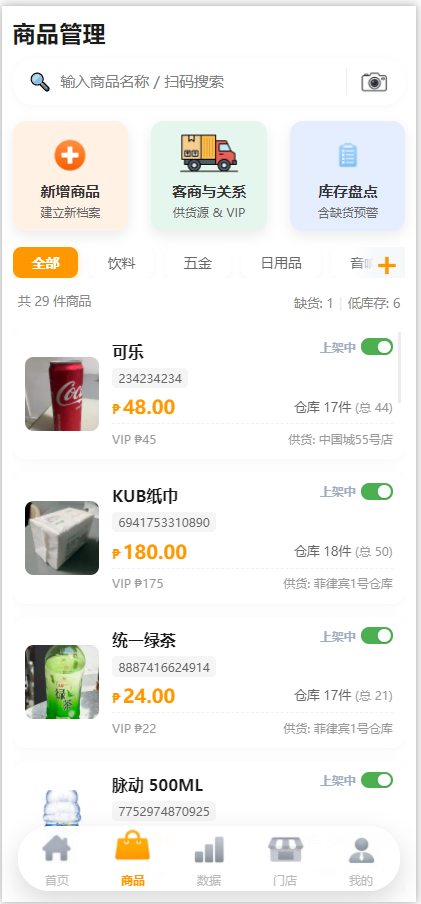
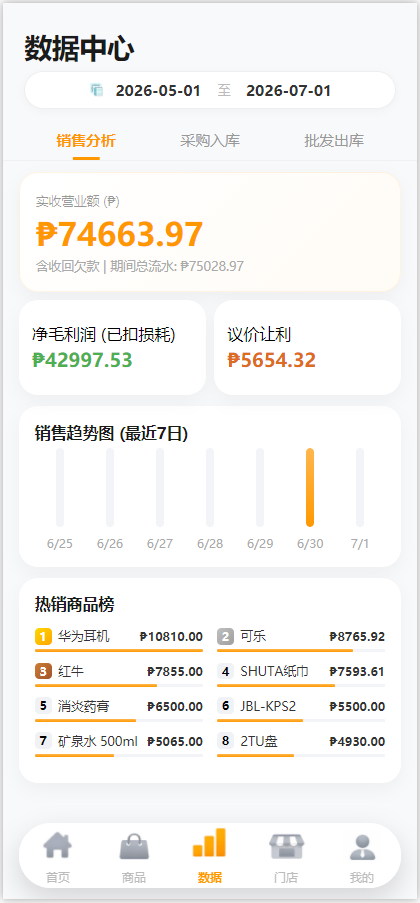
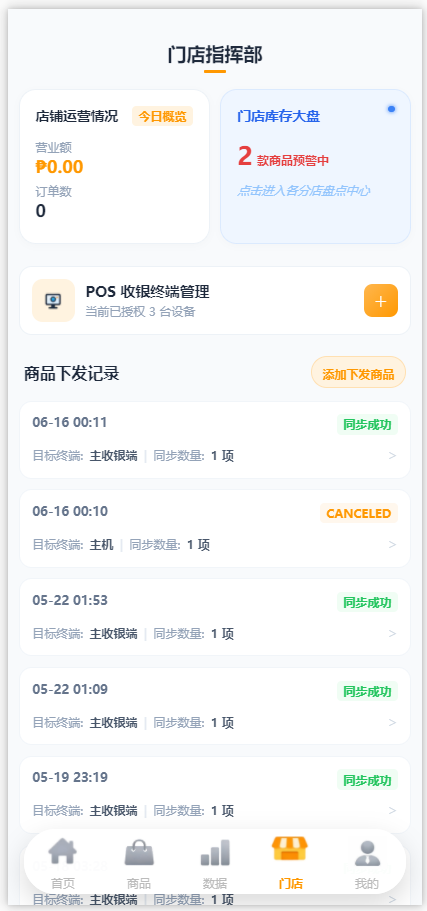
Product Management
Cost, floor price, retail price, VIP price, multi-pack units, stock and suppliers each have their own place — no memory, no paper.
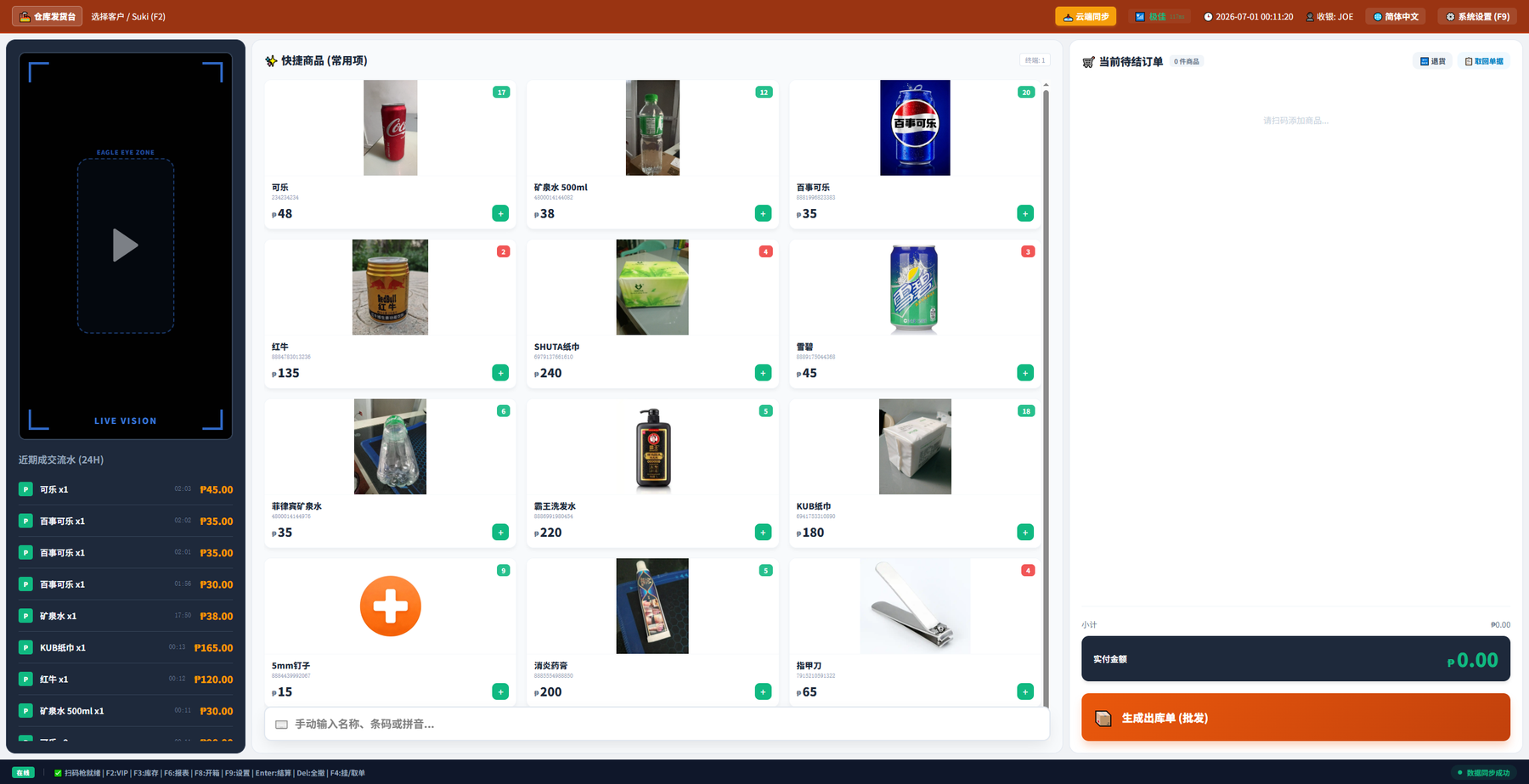
Desktop POS
Hawk-eye recognition and recent sales on the left, a quick product grid in the middle, open orders on the right. What the cashier sees is what the cashier actually uses.
Fits convenience stores and wholesale warehouses: frequent items, live transactions and order actions on a single screen.
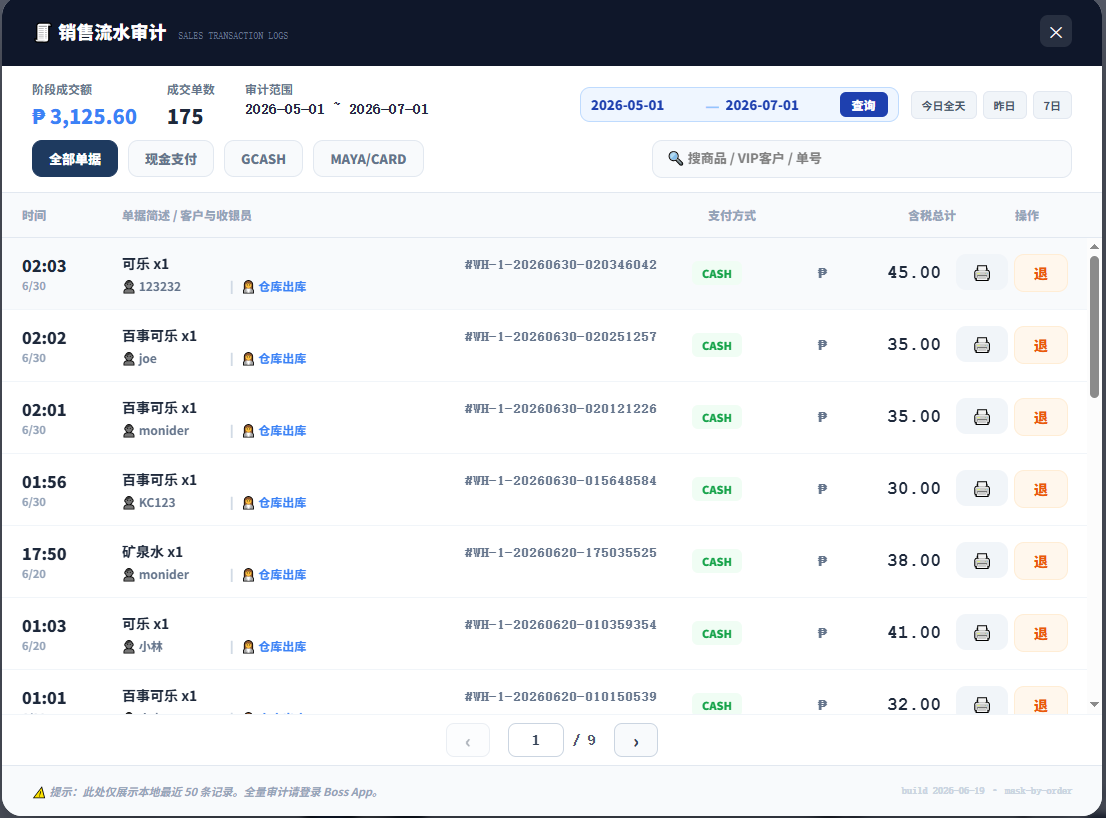
Search by date, payment method, product, VIP customer or order number; reprint or refund in seconds.
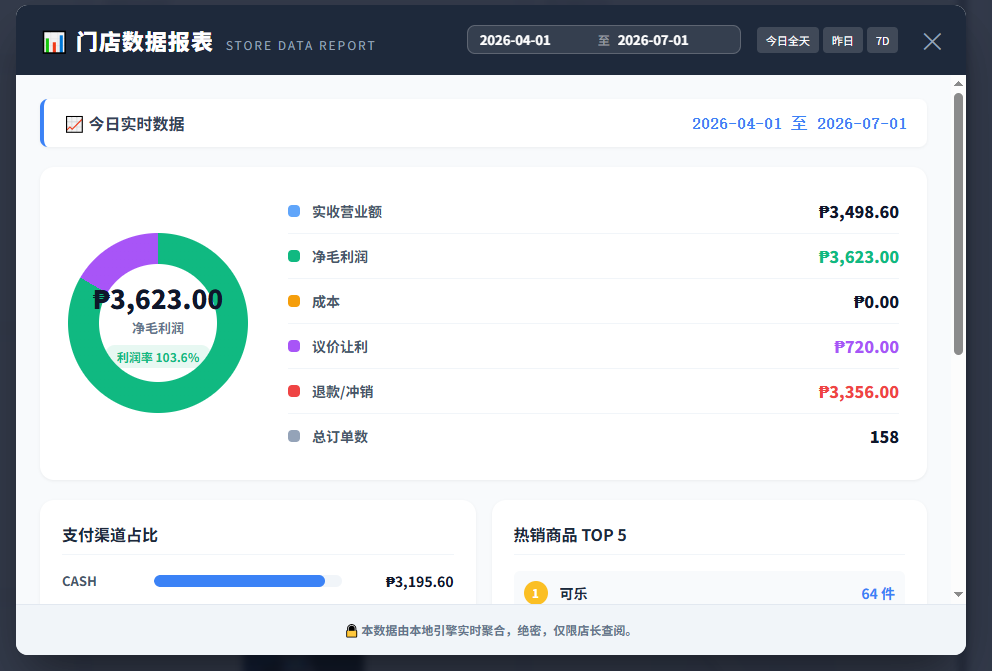
Owners look at results, staff look at execution — the data settles out of the POS on its own.
Built for real stores
The VERTEX interface isn't there to show off, it's there to be used every day: drinks, daily goods, wholesale case prices, stock sync, cashier permissions, store data and multi-language are all already part of the flow.
Download
Unzip and run — no installer needed. Please read step 3 before the first launch.
SHA-256b046397085a8dd9de0f5d2d5e69ed1e0d09fb8dbfaf523f4c5cf1781e484d5fd
Ready when you are
The POS runs in the store and syncs live to the owner's phone. Keep selling offline; it catches up automatically once you're back online.